
Docs / AmbiBack Manager
AmbiBack Manager
AmbiBack Manager is the new Android app for AmbiBack. It finds controllers on your Wi-Fi, gets new devices onto the network and controls light, mode and scenes right from your phone.
Status: version 1.4, Android 8.0 or newer. The app has not yet been tested on a real phone or with real AmbiBack hardware. The screenshots come from an Android emulator with a simulated controller and show the German interface; the app is also available in English.
Download
The current APK is on the release page on GitHub. Open it on your phone or scan the QR code there. The first time, Android asks whether you want to allow apps from this source. The source code is in the ambiback-manager repository.
Finding devices
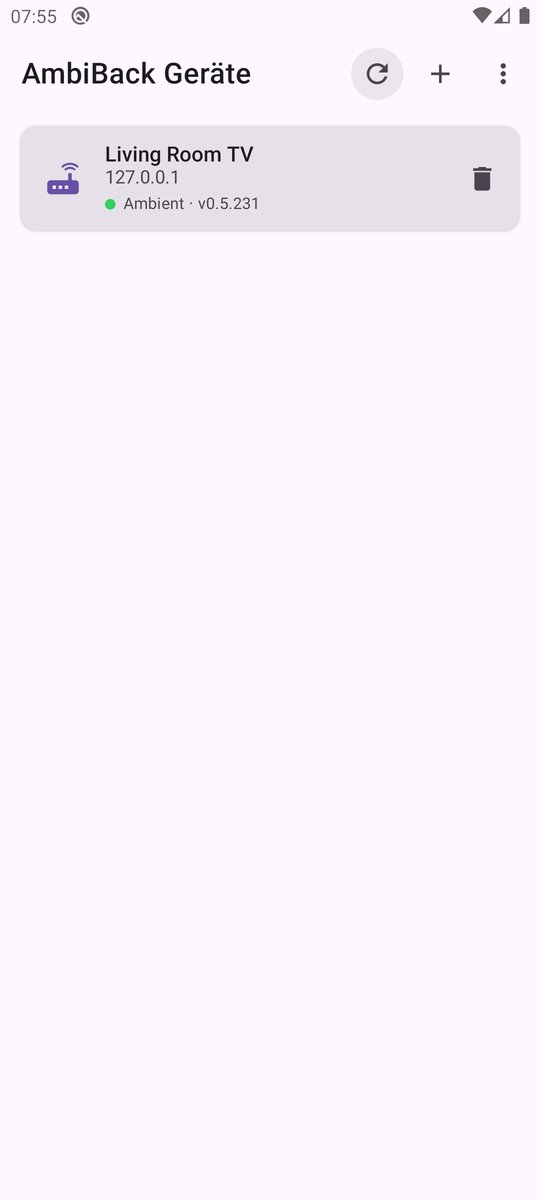
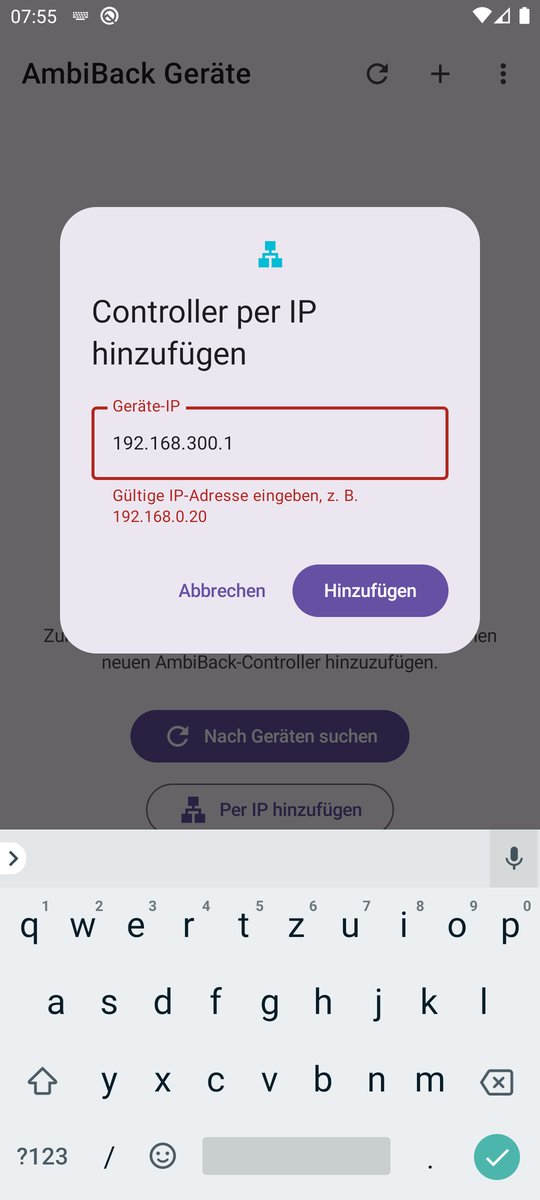
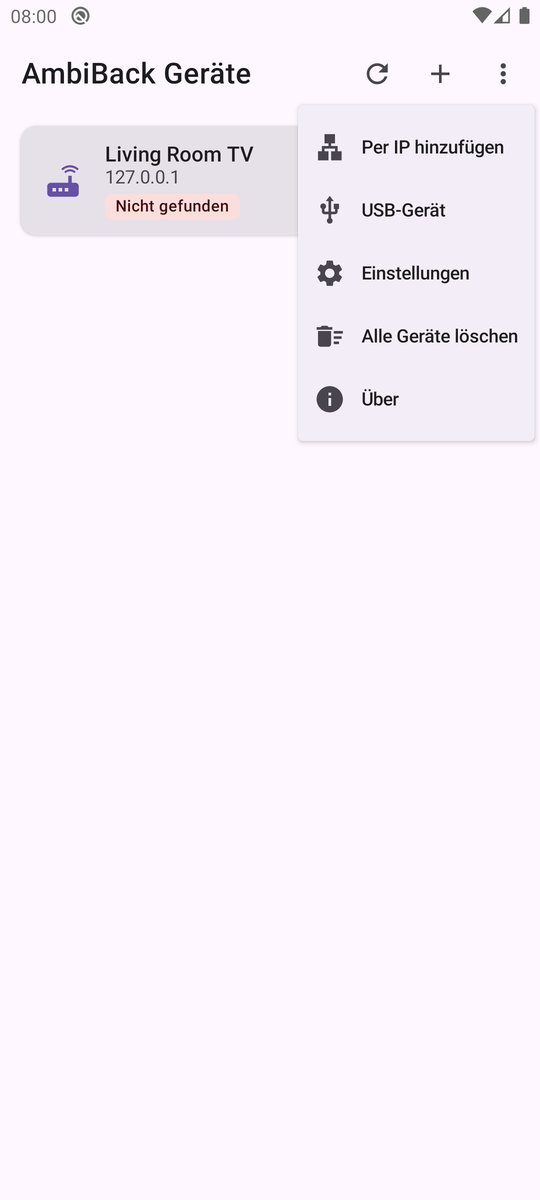
When it opens, the app searches your Wi-Fi for AmbiBack controllers. Each card shows the name, IP address, mode and firmware version. If the search misses a device, you can add it by its IP address.
Setting up a new device
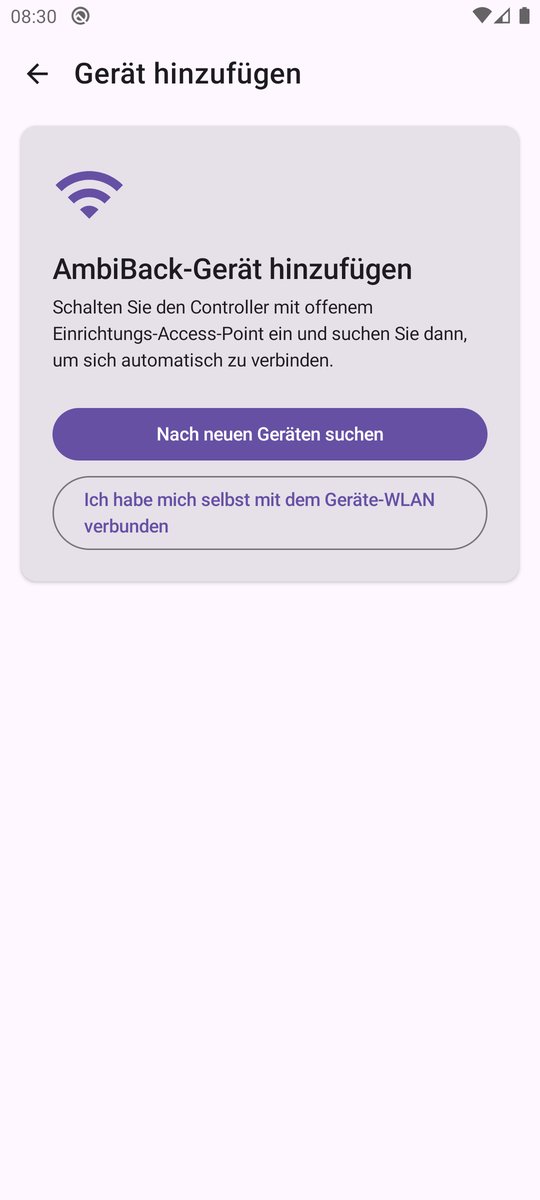
A new or reset controller opens its own access point. The app finds it, connects and gets it onto your network via WPS or with your Wi-Fi name and password. Along the way it pairs with the controller and stores a device key for restarts, WPS and firmware updates.
Controlling the light
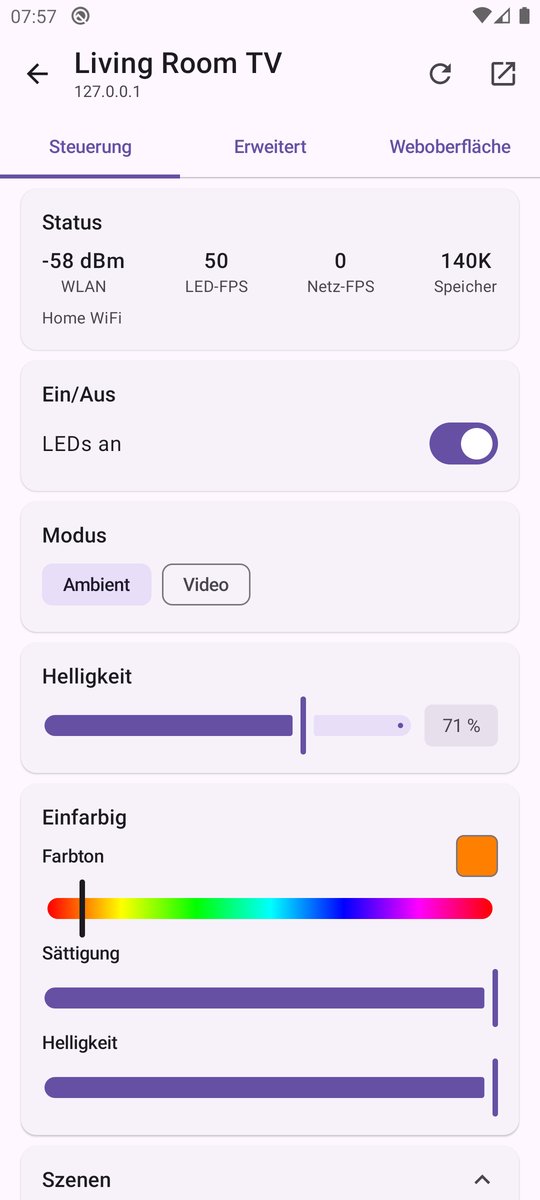
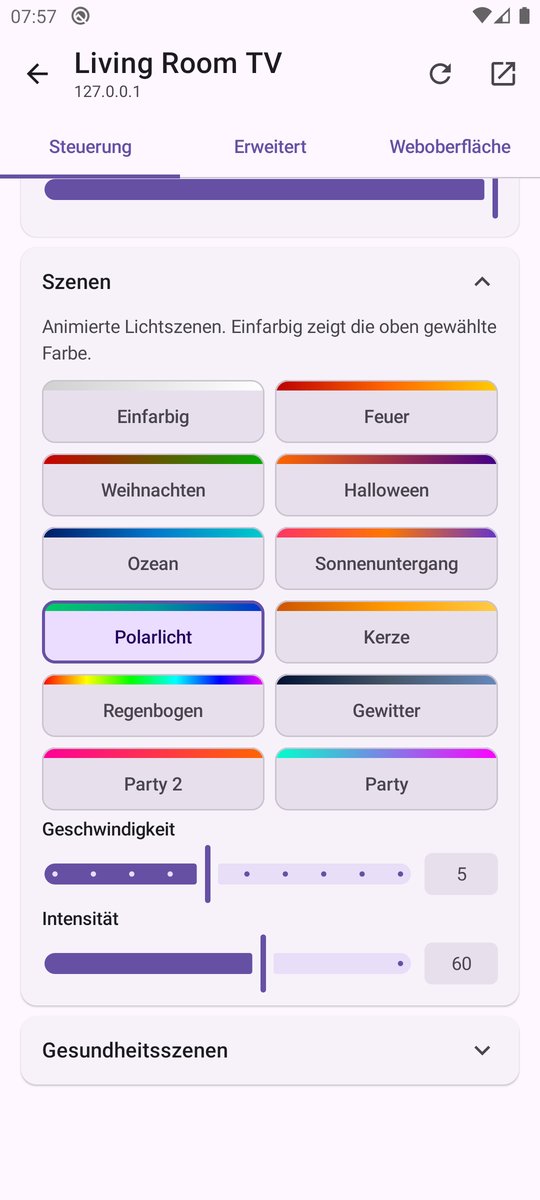
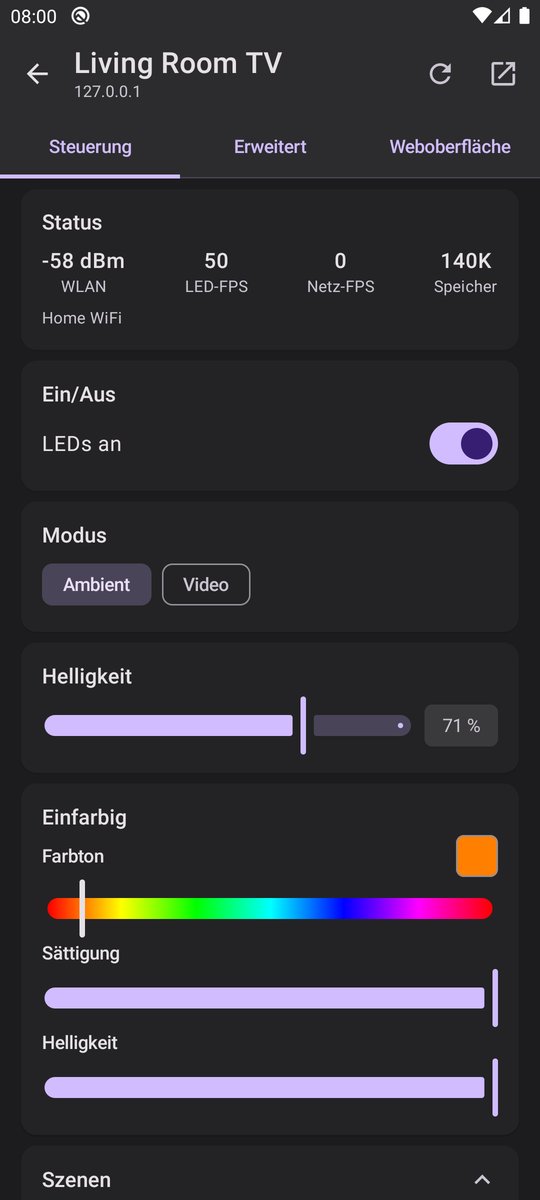
The Control tab shows Wi-Fi signal, frame rates and free memory and switches the LEDs on and off. You choose the mode (Ambient or Video), the brightness and a fixed colour. On top of that there are animated scenes such as aurora, candle or thunderstorm, with sliders for speed and intensity. The Advanced tab opens the full AmbiBack interface with every setting.
Health scenes
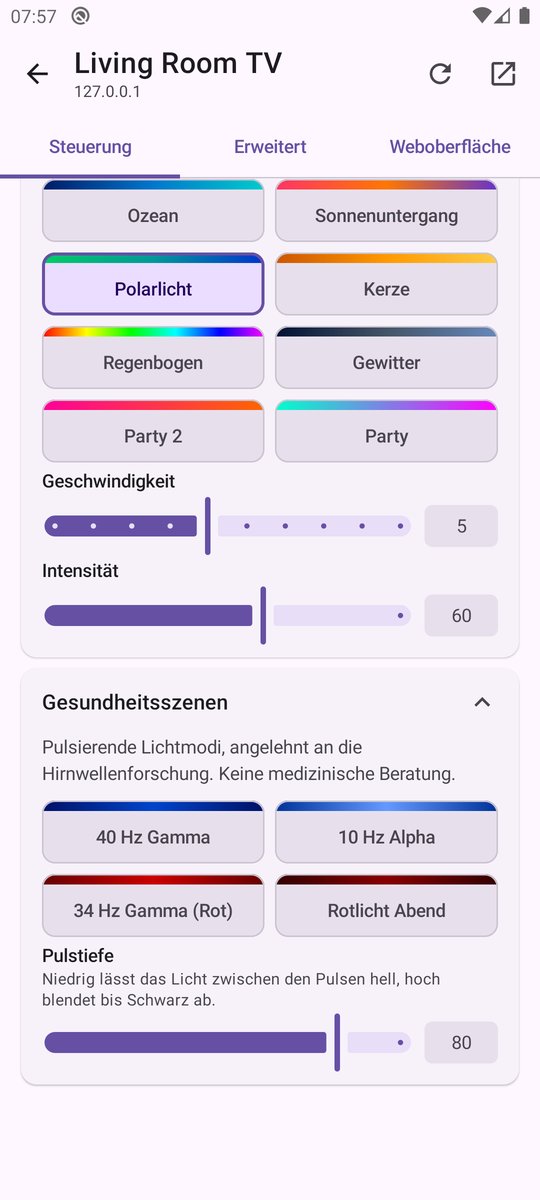
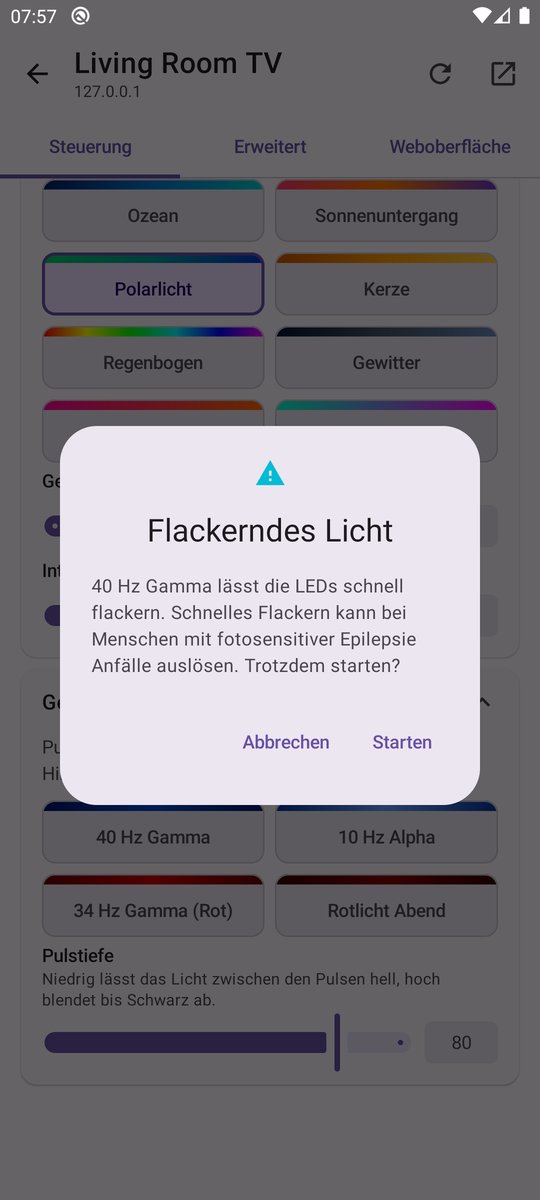
Some scenes make the LEDs flicker quickly, inspired by research on brain waves. The app asks before the first start, because fast flickering can trigger seizures in people with photosensitive epilepsy. These scenes are not a medical treatment.
Managing over USB
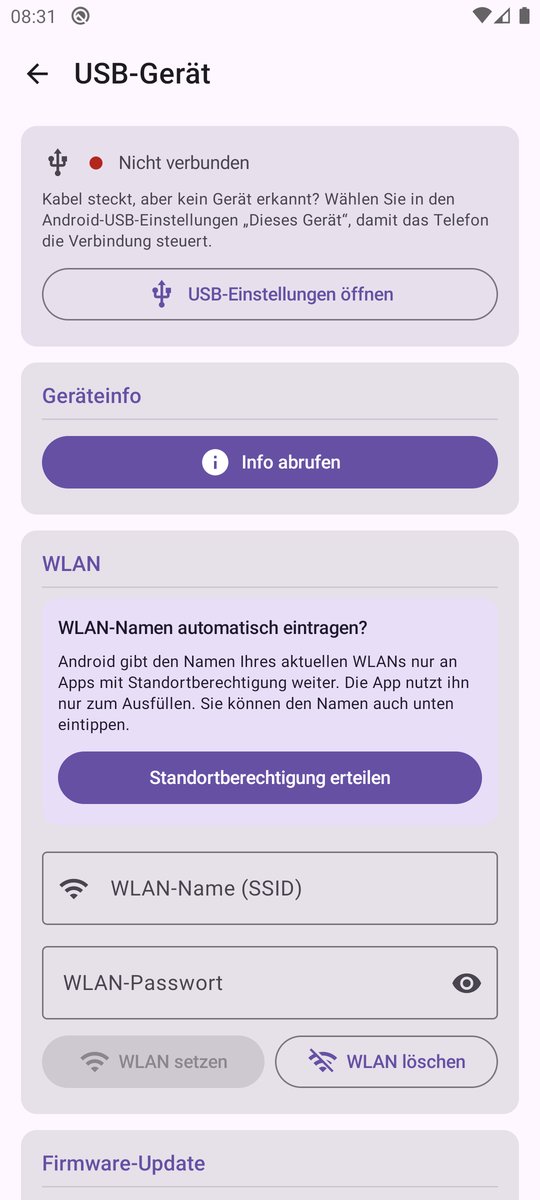
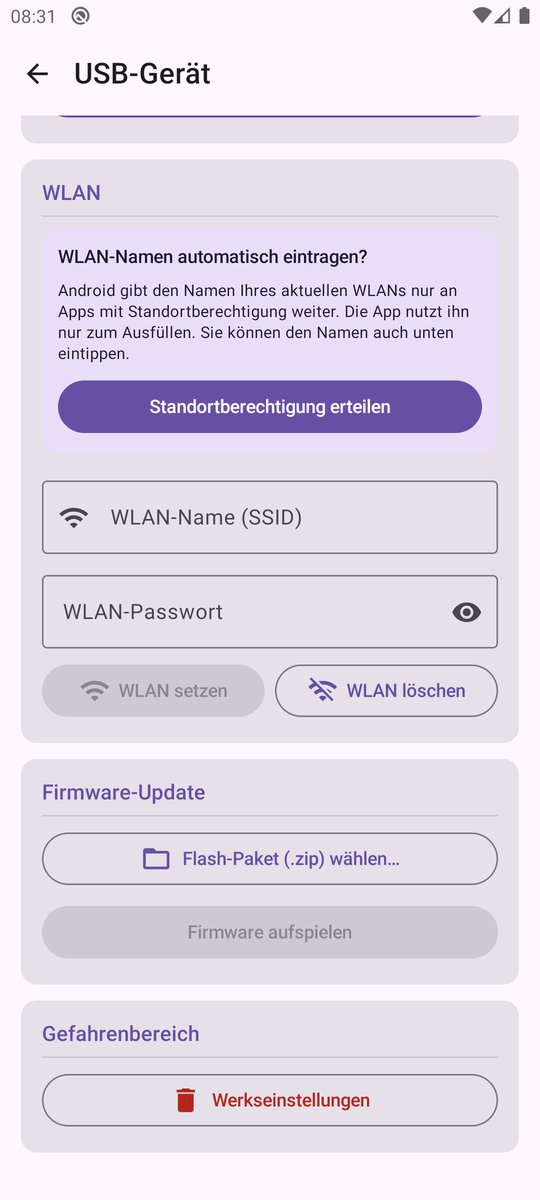
Connect the controller to your phone with a USB cable and the USB screen opens. There you read out type, version and address, enter Wi-Fi details, flash new firmware or reset the device.
Learn more
Every step and troubleshooting tips are in the user manual on GitHub (German). The earlier beta app could only find devices and open their web interface.