
Docs / AmbiBack CAM guide
AmbiBack CAM guide
Archive: This guide is based on the beta test state of July 2021. The current firmware has not yet been tested on hardware and may differ.
1. Connect
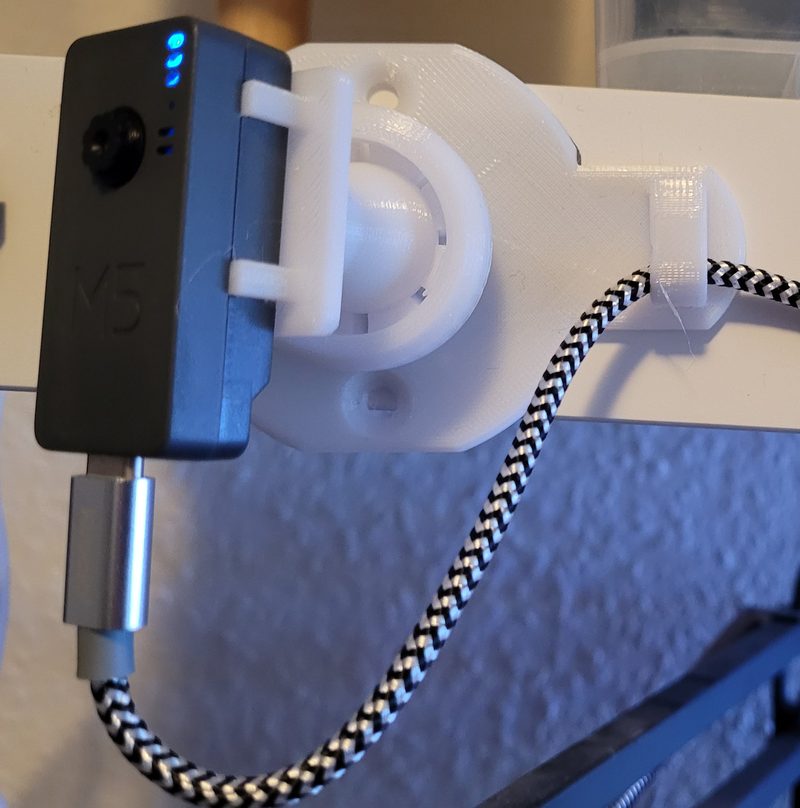
Connect the camera over USB-C to a USB power supply, a phone charger or the USB port of your TV or AV receiver. Position it with a clear, preferably straight view of the picture.
2. Connect to Wi-Fi
- Make sure the camera has power.
- Hold the small button on the side for 8 to 10 seconds. The device flashes once per second and stays in WPS mode for 2 minutes.
- Press the WPS button on your router or start WPS in its interface.
- Once connected, the blue LED briefly goes off and on again.
3. Open the interface
The easiest way is the Android app, which finds all devices on the network. In a browser, try http://ambibackcam.local, or http://ambibackcam.fritz.box/ on a FRITZ!Box. Otherwise look up the IP address in your router's device list.
4. Buttons
| 0 to 1.5 s | switches between camera and off |
|---|---|
| 1.5 to 7.5 s | restarts the camera |
| 7.5 to 15 s | starts WPS |
| 15 s or more | factory reset, all settings are erased |
A hidden reset button inside the case restarts the system.
5. Set up the camera
- Leave the Controller Mode on Off for now.
- Select your LED controller under LED Processing on. UDP is the recommended protocol.
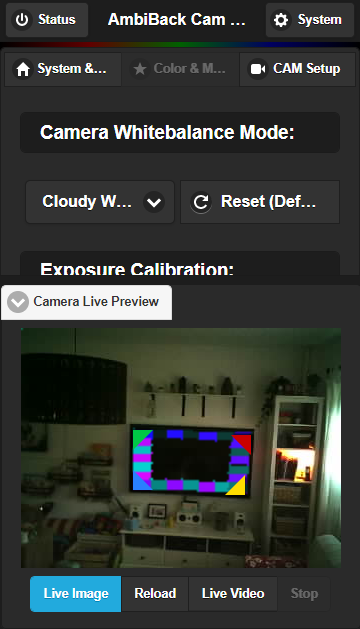
- In CAM Setup, place the four corners on the corners of the TV: green top left, red top right, blue bottom left, yellow bottom right.
- Then set the Controller Mode to Camera.
6. Key settings
| Camera Color Mode | Single Color: one colour. Full Lightbar: one colour per side. Detailed Colors: 3 to 15 sectors per side, 7 to 9 recommended. |
|---|---|
| Mirror / Flip | only needed if the camera is mounted the other way round |
| Whitebalance Mode | useful options are Default, Cloudy and Sunny |
| Color Boost Balance | 50 is balanced and prevents yellow turning red, for example |
| Minimum Luminosity | minimum brightness, even on a black picture |
| Motion handling | Direct processes directly, Normal slightly smooths transitions |
| Camera Automatic Stop | tries to detect when the TV is off. Daylight and reflections can make this difficult. |
Avoid changing the Lightexposure, Adaptive Exposure and Adaptive Gain options if you can.